3. Submit a Script to the GPU Cluster (Slurm)
To begin, from the main menu along the top of the page:
- Select Jobs > Job Composer
The first time you access the Job Composer, a wizard will run through the basic steps, after progressing through the steps, continue below.
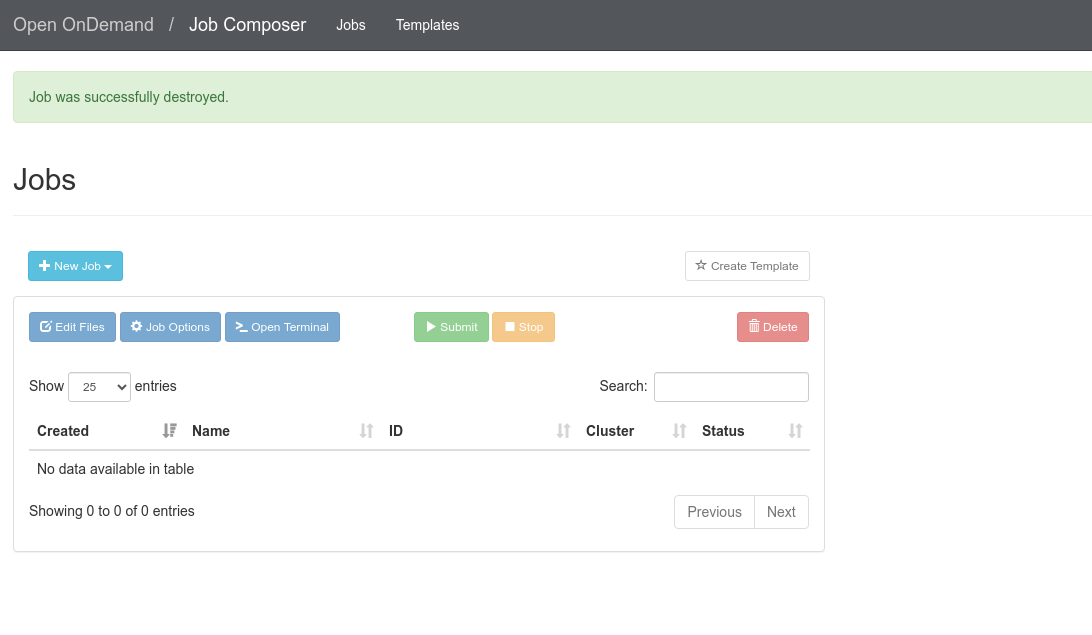
In the main column, a list of your current projects/jobs, consisting of job scripts and output files, initially empty
 |
|---|
On the right, details about the location and contents of the currently selected project/job
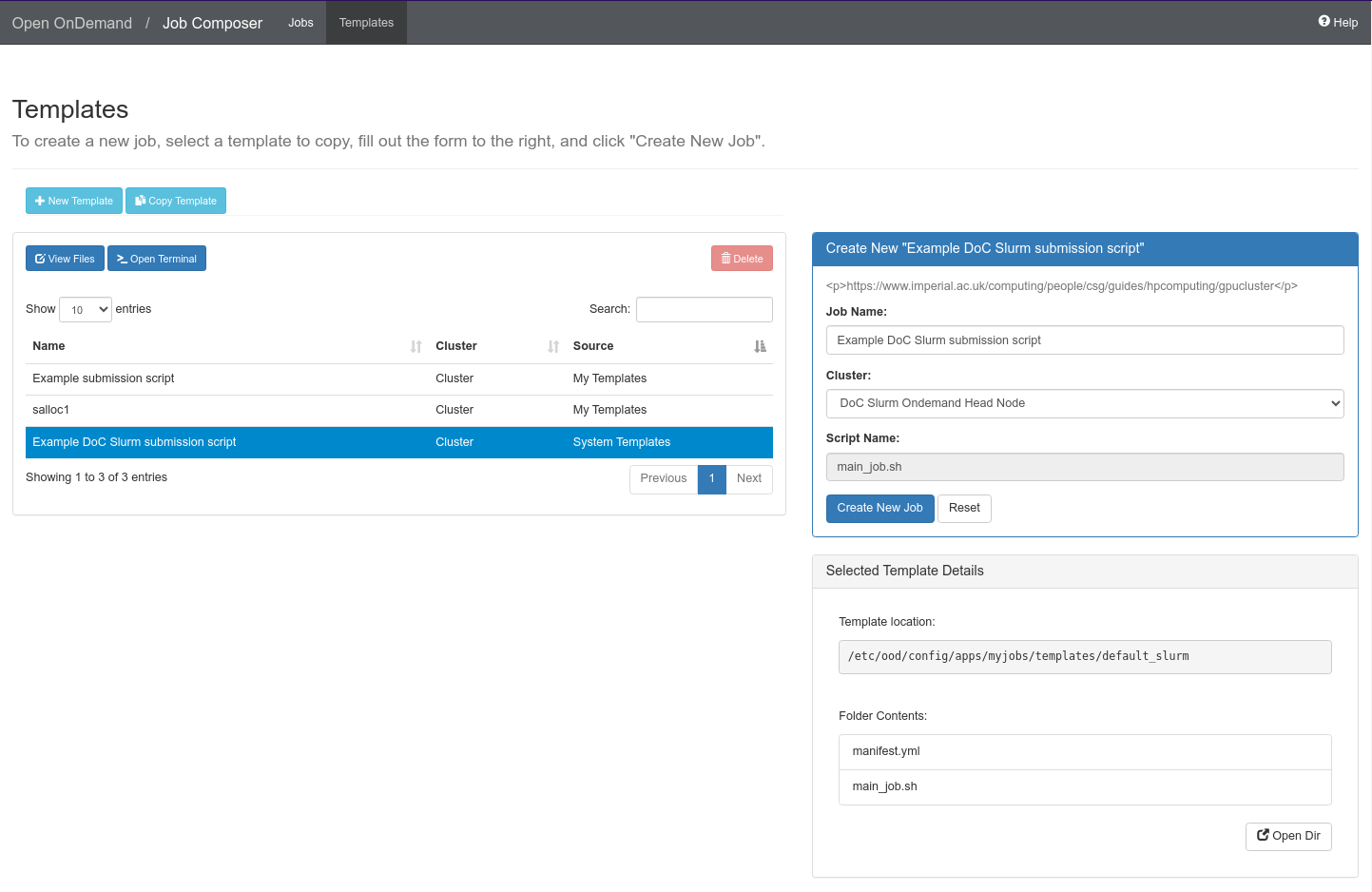
- Click New job> select from Template.
- Choose Example DoC Slurm submission script
- Click Create New Job
 |
|---|
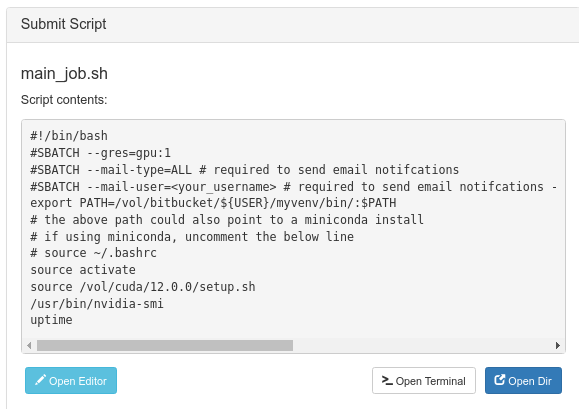
Examine the script contents
Make changes by clicking Open Editor.
Be sure to replace
with your college username (please remove '<' and '>' Save the changes then click Submit (green button in main window)
 |
|---|
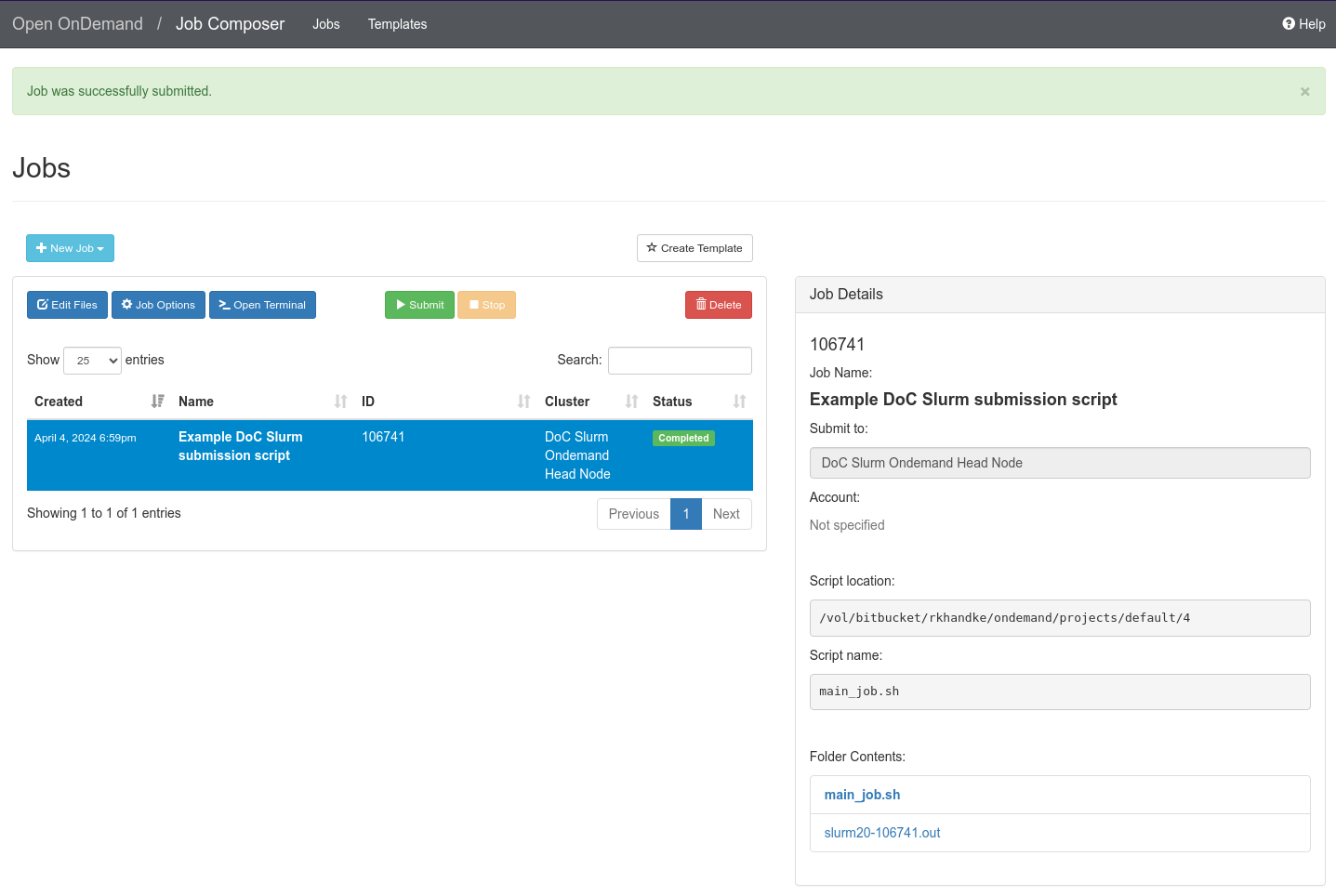
After a few seconds the job will complete, the page will auto refresh, you can see new outputs in the right column under Folder Contents.
The Slurm Job ID will appear in the main window under 'ID', so view the out file for the corresponding job number under Folder Contents
 |
|---|
- Click on an .out filename to view in a simple HTML file viewer within the your web browser
You can edit and submit job scripts from here, and not have to use other parts of the Ondemand tool, if you prefer.